Ultrathink is built around one habit: capture first, sort later. Saving something should take seconds, and you shouldn’t have to decide where it goes. The sorting happens afterwards, mostly by the AI. Features marked Pro need the Pro plan. Everything else is free. See pricing.
Capture it
The browser extension
For Chrome, Edge and other Chromium browsers.
- Click the icon, or press
Ctrl+Shift+4(Cmd+Shift+4on a Mac), and the page saves itself after three seconds. Add a note first if you like. - Select some text first and it saves that too.
- Press
Ctrl+Shift+5(Cmd+Shift+5) to drag out a screenshot of part of the page, or click once for the whole visible page. - Tick All tabs to save every tab in the window at once.
- Save a ChatGPT, Claude or Perplexity chat and the whole conversation comes with it.
- Outlook emails, LinkedIn, X and GitHub profiles, PDFs, Markdown files, YouTube and Vimeo videos, and Word, Excel, PowerPoint and OneNote links from SharePoint and OneDrive are each recognised for what they are.
The desktop app
For Windows 10 or later, and Macs with Apple silicon or Intel chips.
- A small window that stays on top. Type a note and it saves itself.
- Take a screenshot of the whole screen or drag out a region, on any monitor.
- Record a voice note. On Windows, meeting mode records your mic and your computer’s sound together, so both sides of a call are captured. Recordings of an hour or more are fine.
- Drop files on it to save them.
- Recordings made offline wait and upload when you’re back online.
The web app
- Press New, or just press
N, and quick capture opens in its own window. - Drop a file, a link or some text anywhere on the window to save it.
- Hold New to record a voice note, and let go to save it.
On your phone
Use the web app in your phone’s browser. An iPhone app is coming soon.
The AI tidies it
When you save something, the AI works on it in the background. You can watch it happen in the entry’s row: title, summary and topics arrive one after another.
- A title, unless you’ve written one.
- A short summary. Images and screenshots are described and any text in them is read. Voice notes and recordings are transcribed, with who said what. Documents and web pages are read and summarised.
- Spelling and grammar fixed in your notes, titles and comments.
- Up to three topics. The AI reuses your own topics wherever it can and skips general ones. Topics you add yourself are never changed, and a topic you remove stays removed. Topics the AI added show with a dashed outline and a small sparkle.
- People it finds are picked out and matched to the people you already have.
- What kind of entry it is: a task, a project or just knowledge. Work or personal, too. Pro: tell it what counts as work and what counts as personal, in Settings, Entities.
- Due dates. Write “chase this Friday” and it picks up the date.
- Links between entries. Mention another entry in your notes and the two are linked. Similar entries are found for you as well.
How the AI writes
In Settings, Detail panel, choose UK English or US English for summaries and for the tidy-up of your notes. Or choose Keep my wording, and the AI never changes your notes. UK English is the default. You can also switch AI titles, the tidy-up or the AI as a whole off.
The AI tidy-up is part of Pro. On Free, your entries save exactly as you wrote them.
Find it again
One search bar
There’s one search bar at the top of every page.
- Type, and the page you’re on filters as you go, whether it’s a list, a table, a board or a calendar.
- Type
#and a topic, or@and a person, then press Enter, and it becomes a filter. Ctrl Ktakes you to the search bar from anywhere.Escclears it.- Filters live in the page header too, as chips you can remove. Due: This week is one of them, and Pro adds Overdue.
AI search (Pro)
Press Enter in the search bar to ask a question in normal words, like “what was that pricing page I saved about note apps?”. The answer opens on the Search page, with links to the entries it used. Entries your organisation shares with you are searched too.
Related entries
Every entry has a Relationships section with the entries linked to it. Pro: the AI adds similar entries, and links to the people and things an entry mentions. Turn on the similar lens, and pointing at an entry lights up its similar and linked entries in the list, table or board.
Saved views
- Save any filter as a view. Views sit in the Views section in the sidebar, with a count each, and you can drag them into order. The link holds the filters, so you can bookmark or share a view.
- Six ready-made views: Stale (open and not touched for a week), Needs me, Waiting on others, Overdue (Pro), This week and Recently captured.
- Pro: Ask turns plain English into a view. Type something like “everything about the book swap from last month as a board”, and it sets the filters, matching names to your own topics, people and statuses.
- Any saved view can be a board or a calendar. Group a board by status, topic, person or who it is waiting on, add swimlanes to split it again, and drag a task to another day on the calendar to move its due date.
- Home can open on any view.
Topics
Topics are how Ultrathink groups things, and you don’t have to add any yourself.
- The Topics page opens with a health panel: how many entries carry a general topic, how many topics each entry has, topics used only once, the ones the AI added, and topics spelt more than one way.
- One click merges the variants, or removes the general topics.
- Renaming or merging a topic updates every entry that uses it. Deleting a topic takes it off its entries too.
Tasks
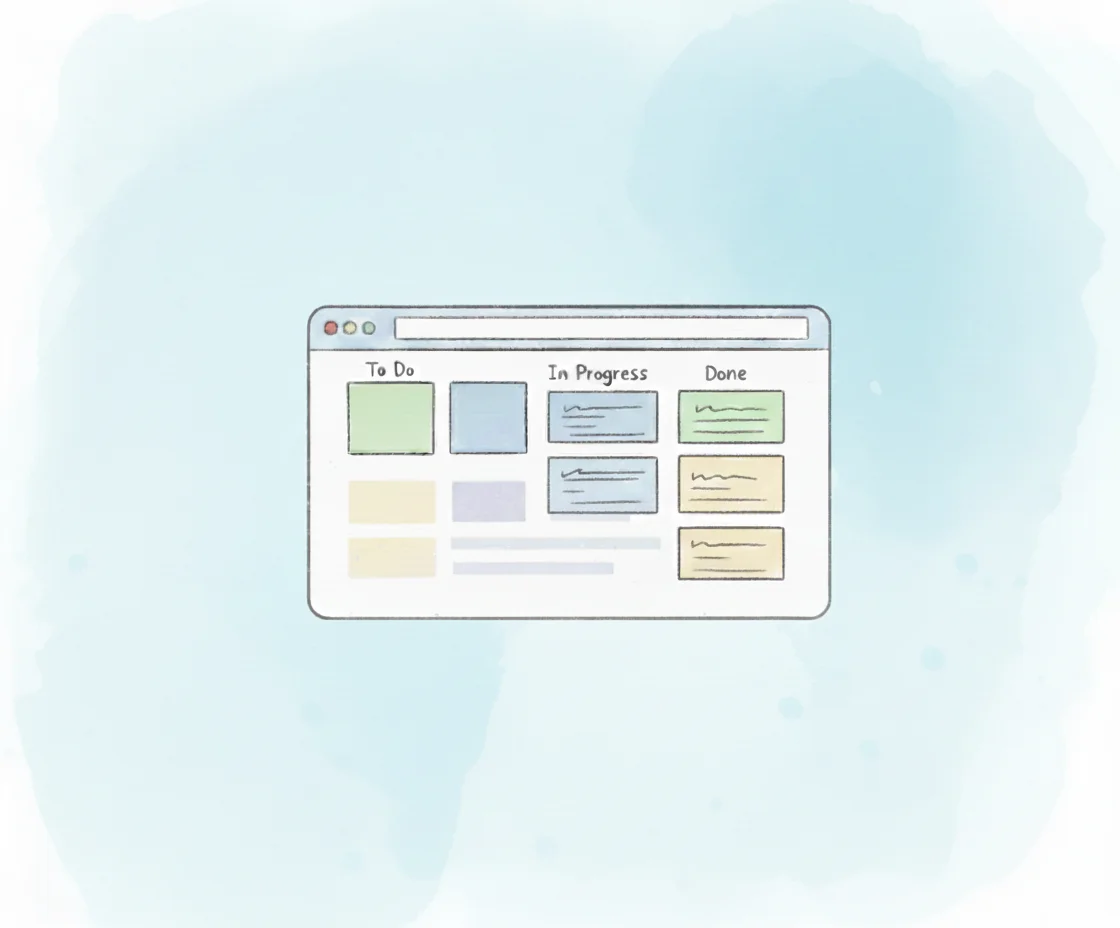
- See tasks as a list, a table, a board or a calendar, by month or week.
- Give a task a due date and a time. A task due today only counts as overdue once the day is over.
- Note who it’s waiting on: you, or one person. Tables have a Waiting on column and a filter.
- Add labelled links, such as “Live post”.
- Board columns are your own. Name them, colour them, and drag cards between them. Each saved view can have columns of its own, so a task can sit in Doing on one board and This week on another. A view’s own column can set a status when a card is dropped in it, so a Shipped column can mark a task done; that is off until you choose a status for the column.
- Pro: colour card borders by how soon or late they’re due.
Statuses (Pro)
Statuses are optional. In Settings, Entities, Status workflows, name your own statuses, choose their colours and which count as done. Give projects and knowledge statuses too, or give a topic its own workflow, such as Planned, Drafting, To approve and Live for blog posts. Done tasks hide with Hide done and never show as overdue.
Reminders
The desktop app can remind you about tasks due today or overdue, at times you choose. Click a reminder to open the task. Reminders are off until you switch them on in Settings, Notifications, where you can also skip weekends or set quiet hours. If you use more than one computer, only one of them shows each reminder.
Plan it
Canvas views
Show any view as a canvas: lay out its entries as live cards, add sticky notes, text, arrows, frames, shapes and drawings around them, then present it frame by frame or export it as a picture.
Make it yours
- Settings stay in step across your open tabs and devices, and save as soon as you change them.
- Appearance: light, dark or follow your computer, text size and density. Under Interface, switch off anything you don’t want, such as the New button or the similar lens.
- The menu: reorder, rename, hide and group the items in the left menu, and choose the page Ultrathink opens on.
- Labels (Pro): rename projects, tasks and knowledge, and choose their colours.
Work with others
Join your organisation in Ultrathink and share work entries with its members. Shared entries are included in your organisation’s AI search. Comment on any entry, and type @ to link another entry in a comment.
Connect your other tools
- Device keys connect the browser extension, the desktop app and anything else to your account. Make one in Settings, Device keys.
- The MCP server (Pro) connects AI apps that support MCP, such as Claude Code, Cursor and VS Code, to your Ultrathink. They can search your entries, read one in full, find related entries, list entries with the same filters as your views, see what changed lately and list everything about a person or a topic. With a read and write key they can also save and change entries, many at once, write comments, tidy up topics and people, bring entries back from Recently deleted, make and change views, lay out your canvases and undo what they did. They delete things or change your settings only if you switch that on for the key.
- The API (Pro) lets your own tools read and save entries.
See integrations for how to set each one up.
Help when you want it
A guided tour shows you round, and What’s new tells you when something changes. Both are in your account menu, top right. The Help panel opens from the question mark in the top bar.
Coming soon
- An iPhone app. Until then, use the web app on your phone.
- Search by meaning: search that finds entries by what they mean, across everything you’ve saved.
Questions
Use the Send feedback button in the app, or email me@cmw.email.